How to Encrypt Email in Outlook: The Complete Step-by-Step Guide
Email remains one of the world’s most widely used communication tools, but it is also one of the most common targets for cybercriminals. Every day, organizations exchange contracts, financial records, healthcare information, legal documents, intellectual property, and customer data through email. How to Encrypt Email in Outlook Without encryption, these messages can become vulnerable to interception, unauthorized access, or accidental disclosure.
Fortunately, Microsoft Outlook provides built-in encryption technologies that help individuals and businesses safeguard confidential information. Depending on your Microsoft 365 subscription and organizational policies, Outlook supports two primary encryption methods: Microsoft Purview Message Encryption (MPME) and S/MIME (Secure/Multipurpose Internet Mail Extensions). Both technologies protect email content, but they serve different purposes and require different levels of configuration.
Whether you’re sending sensitive business proposals, confidential legal documents, healthcare records, or personal financial information, learning how to encrypt email in Outlook is an essential cybersecurity skill. This guide explains how Outlook encryption works, compares available encryption methods, provides setup instructions, discusses common troubleshooting issues, and highlights best practices for securing email communications across Outlook for Windows, the new Outlook, Outlook on the web, and Outlook for Mac.
Why Email Encryption Matters
Cyberattacks targeting email continue to increase because email remains a primary channel for business communication. Attackers often attempt to intercept messages containing financial information, credentials, contracts, or personally identifiable information (PII). Encryption helps reduce this risk by ensuring that only authorized recipients can read a message.
Unlike password-protected attachments, encrypted emails protect the message body and, depending on the encryption technology, may also secure supported attachments. Even if an encrypted email is intercepted during transmission, the content remains unreadable without the appropriate encryption keys or authentication process. Microsoft recommends encryption whenever sensitive information is shared internally or externally.
“Email security is strongest when encryption is combined with identity verification and access controls.” — Microsoft security guidance.
Understanding Outlook’s Two Encryption Methods
Outlook currently supports two major encryption technologies.
Microsoft Purview Message Encryption is designed for organizations using Microsoft 365. It allows users to send encrypted emails to recipients inside or outside the organization without requiring both parties to exchange certificates. Recipients can authenticate using Microsoft accounts, supported identity providers, or one-time passcodes, depending on configuration.
S/MIME encryption, on the other hand, uses digital certificates to encrypt messages and digitally sign emails. Both the sender and recipient generally need compatible certificates to exchange encrypted S/MIME messages. It is widely used in regulated industries, government agencies, healthcare, and financial institutions where certificate-based trust is required.
| Feature | Microsoft Purview Message Encryption | S/MIME |
| Certificate Required | No (for most users) | Yes |
| External Recipients | Yes | Yes, with certificates |
| Digital Signatures | Limited | Yes |
| Best For | Microsoft 365 organizations | Highly regulated environments |
| Ease of Setup | Easy | Moderate to Advanced |
How Microsoft Purview Message Encryption Works
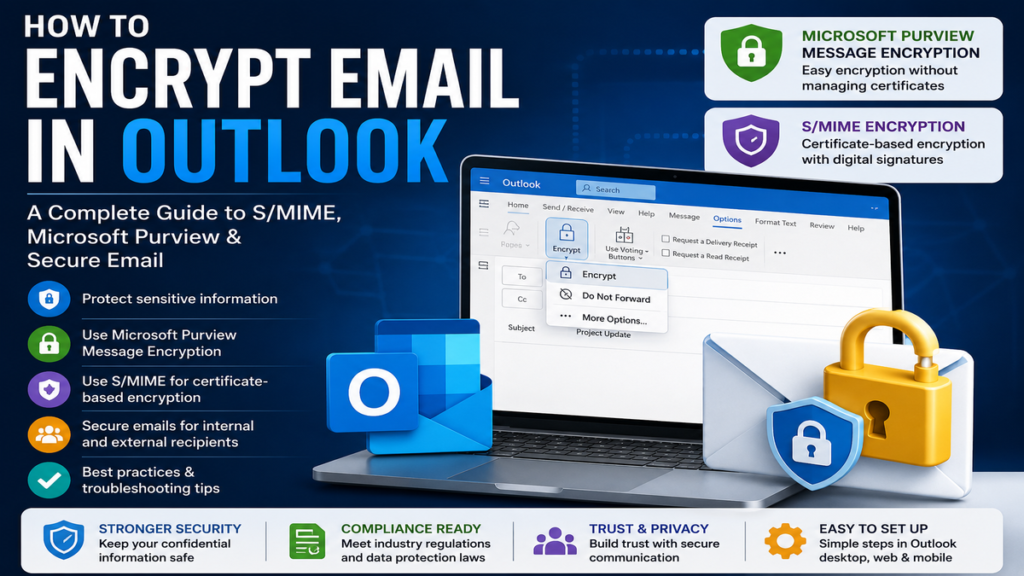
Microsoft Purview Message Encryption integrates with Microsoft 365 to secure email messages using rights management and encryption policies. Users can choose options such as Encrypt, Do Not Forward, or organization-specific protection templates directly from Outlook, depending on administrative configuration. These protections help prevent unauthorized forwarding, copying, or printing of messages in supported scenarios.
For recipients using Outlook with Microsoft 365, encrypted messages often open seamlessly after authentication. Users of Gmail, Yahoo Mail, or other providers may receive a secure link that lets them authenticate and read the encrypted message through Microsoft’s secure message portal. This approach eliminates the complexity of exchanging encryption certificates while maintaining strong protection for sensitive communications.
Understanding S/MIME Encryption
S/MIME has been an industry standard for secure email for many years. It provides two important capabilities:
- Encryption, which protects message confidentiality.
- Digital signatures, which verify the sender’s identity and confirm that the message has not been altered in transit.
Before using S/MIME, users must obtain a digital certificate from a trusted certification authority or their organization’s IT department. That certificate is installed on the device and configured within Outlook. Because encryption depends on public-key cryptography, the sender generally needs access to the recipient’s public certificate before sending an encrypted S/MIME message.
Organizations in healthcare, legal services, government, and finance often choose S/MIME because it supports certificate-based trust models and strong identity verification.
How to Encrypt an Email in the New Outlook
The new Outlook simplifies encryption for Microsoft 365 users.
After composing a new email, select Options, choose Encrypt, and then select the desired encryption policy available to your account. Organizations may offer choices such as Encrypt or Do Not Forward. Once selected, complete your message and send it normally. Outlook automatically applies the chosen protection before delivery.
If your organization uses S/MIME, administrators or users must first configure digital certificates under Settings > Mail > S/MIME before S/MIME encryption becomes available.
Configuring S/MIME in Outlook
Setting up S/MIME requires more preparation than Microsoft Purview Message Encryption.
The general process includes:
- Obtain a valid digital certificate.
- Install the certificate on your computer.
- Configure Outlook to recognize the certificate.
- Enable encryption or digital signing.
- Exchange certificates with intended recipients if necessary.
Microsoft notes that the exact configuration steps vary slightly between the new Outlook, classic Outlook, Outlook on the web, and Outlook for Mac, but all rely on installing and selecting the correct digital certificate before encrypted communication begins.
How to Encrypt Email in Outlook:
Key Points
- Explain what email encryption is and why it is important.
- Describe how Outlook email encryption protects sensitive information.
- Differentiate between Microsoft Purview Message Encryption and S/MIME.
- List the Microsoft 365 subscription requirements for encryption features.
- Explain when to use Microsoft Purview versus S/MIME.
- Show how to encrypt an email in the new Outlook.
- Explain how to encrypt an email in classic Outlook for Windows.
- Cover encryption in Outlook on the web (OWA).
- Explain S/MIME setup in Outlook for Mac.
- Describe how recipients open encrypted emails.
- Explain how external recipients (Gmail, Yahoo, etc.) access encrypted emails.
- Discuss digital certificates and why S/MIME requires them.
- Explain digital signatures and how they differ from encryption.
- Cover the “Do Not Forward” feature and its benefits.
- Describe how encrypted attachments are protected.
- Explain how Outlook encryption supports compliance requirements such as GDPR, HIPAA, and financial regulations.
- Include common encryption errors and how to troubleshoot them.
- Explain why the Encrypt button may be missing in Outlook.
- Cover best practices for protecting confidential emails.
- Explain the role of Multi-Factor Authentication (MFA) alongside encryption.
- Discuss how encryption works with Microsoft 365 security policies.
- Explain the limitations of Outlook email encryption.
- Describe the difference between encryption in transit and end-to-end encryption.
- Include recommendations for businesses and enterprise users.
- Explain how administrators can enable encryption in Microsoft 365.
- Mention the importance of keeping Outlook and Microsoft 365 updated.
- Explain how to verify recipient identities before sending confidential information.
- Cover mobile support for encrypted emails in Outlook for iOS and Android.
- Include security tips for handling confidential attachments.
- Summarize the benefits of using Outlook encryption for personal and business communication.
Best Practices Checklist
- Enable Multi-Factor Authentication (MFA).
- Keep Outlook and Microsoft 365 up to date.
- Use Microsoft Purview Message Encryption for simple, secure email sharing.
- Use S/MIME when certificate-based encryption and digital signatures are required.
- Verify recipient email addresses before sending confidential data.
- Encrypt emails containing financial, legal, healthcare, or personal information.
- Apply Do Not Forward protection when appropriate.
- Secure digital certificates and private keys.
- Regularly review your organization’s email security policies.
- Educate users about phishing and email security awareness
Conclusion
Email encryption has evolved from a specialized security feature into an essential tool for protecting sensitive digital communications. Whether you are an individual sharing confidential personal information or an organization handling financial records, legal documents, healthcare data, or intellectual property, encrypting email in Outlook significantly reduces the risk of unauthorized access during transmission.
Microsoft Outlook provides two reliable encryption options to meet different security needs. Microsoft Purview Message Encryption offers a user-friendly solution for Microsoft 365 organizations, allowing encrypted communication with both internal and external recipients without the complexity of certificate management. S/MIME encryption, on the other hand, delivers robust certificate-based security and digital signatures, making it an excellent choice for industries with strict compliance and regulatory requirements.
Selecting the right encryption method depends on your organization’s infrastructure, compliance obligations, and the sensitivity of the information being exchanged. Equally important are regular software updates, strong authentication practices, user awareness, and adherence to your organization’s security policies. When combined with these best practices, Outlook’s encryption capabilities help create a secure communication environment that protects data confidentiality, preserves message integrity, and builds trust between senders and recipients.
Frequently Asked Questions
1. What is the easiest way to encrypt an email in Outlook?
For most Microsoft 365 users, Microsoft Purview Message Encryption is the easiest option. While composing an email, select the Encrypt option from the message settings or ribbon (depending on your Outlook version), choose the appropriate encryption policy, and send the message. No manual certificate exchange is required for most recipients.
2. What is the difference between Microsoft Purview Message Encryption and S/MIME?
Microsoft Purview Message Encryption is designed for secure email delivery through Microsoft 365 and typically does not require digital certificates for recipients. S/MIME uses public key infrastructure (PKI) and digital certificates to encrypt emails and apply digital signatures, making it ideal for organizations that require stronger identity verification and regulatory compliance.
3. Can I send encrypted emails to someone who doesn’t use Outlook?
Yes. If you use Microsoft Purview Message Encryption, recipients using services such as Gmail, Yahoo Mail, or other email providers can usually access encrypted messages by authenticating through Microsoft’s secure message portal or using a one-time passcode, depending on your organization’s configuration.
4. Why is the Encrypt option missing in Outlook?
The Encrypt option may be unavailable if your Microsoft 365 subscription does not include encryption features, your organization has not enabled message encryption, Outlook is not updated, or your account lacks the required permissions or configuration. For S/MIME, a valid digital certificate must also be installed and configured.
5. Does Outlook encryption protect attachments?
Yes. When an email is encrypted using Microsoft Purview Message Encryption or S/MIME, supported attachments are generally encrypted along with the email message. However, recipients must meet the authentication or certificate requirements associated with the chosen encryption method to access the protected content.
6. Is Outlook email encryption secure enough for business use?
Yes. When properly configured, Outlook encryption provides strong protection for sensitive business communications. Many organizations in finance, healthcare, legal services, education, and government rely on Microsoft Purview Message Encryption or S/MIME to help protect confidential information and support regulatory compliance.
7. Can encrypted Outlook emails be forwarded?
It depends on the protection policy selected. For example, messages sent using the Do Not Forward option in Microsoft Purview Message Encryption restrict forwarding, copying, and in some cases printing. Standard encrypted messages may still be forwarded unless additional restrictions are applied.
8. Do both the sender and recipient need digital certificates?
Only for S/MIME encryption. Both parties generally need compatible digital certificates to exchange encrypted S/MIME messages. Microsoft Purview Message Encryption does not typically require recipients to install or manage digital certificates.
9. Does Outlook encryption work on mobile devices?
Yes. Outlook mobile apps support encrypted email in many Microsoft 365 environments, although available features depend on your organization’s policies, your subscription, and the version of Outlook you are using.
10. What are the best practices for using Outlook email encryption?
Use multi-factor authentication, keep Outlook and Microsoft 365 updated, verify recipient email addresses before sending confidential information, choose the appropriate encryption method for the sensitivity of the data, and follow your organization’s security policies. Combining encryption with strong account security provides the highest level of protection.