Strikethrough Shortcut: The Complete Guide for Every Platform
The Strikethrough Shortcut is one of the most useful keyboard shortcuts for writers, students, office professionals, programmers, editors, and anyone who works with digital text. Instead of deleting information completely, a strikethrough lets you show that text has been crossed out while keeping it visible. This makes it ideal for editing documents, tracking revisions, organizing to-do lists, managing projects, and collaborating with teams.
Whether you use Microsoft Word, Excel, Google Docs, Outlook, Gmail, Slack, Discord, Notion, or Markdown editors, knowing the correct strikethrough shortcut can save time and improve productivity. Rather than searching through formatting menus, you can apply or remove strikethrough with a simple keyboard command.
This comprehensive guide explains every important strikethrough shortcut, how it works across different operating systems, common troubleshooting tips, productivity benefits, and best practices for using strikethrough formatting efficiently.
What Is a Strikethrough?
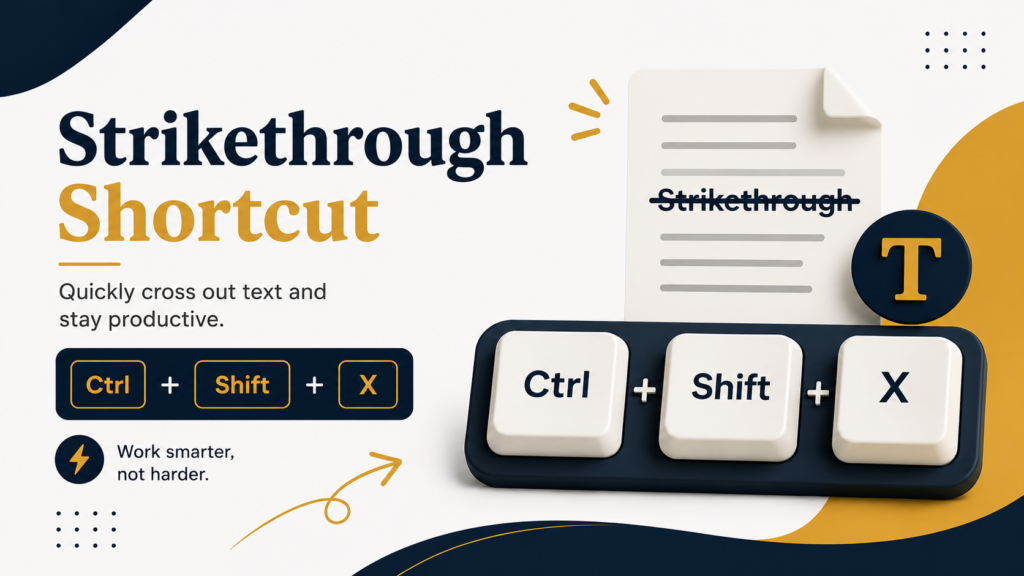
A strikethrough is a text formatting style that places a horizontal line through words or sentences. Unlike deleting content, it keeps the original text visible while indicating that it has been completed, replaced, canceled, or is no longer relevant.
For example:
Finish project report
Instead of removing the task entirely, the crossed-out text shows that the task has already been completed.
This formatting style is widely used in professional documents, academic writing, project management, software development, and collaborative editing.
Why Learn the Strikethrough Shortcut?
Keyboard shortcuts eliminate unnecessary mouse clicks and improve workflow. Professionals who regularly edit documents can save several minutes each day simply by using formatting shortcuts.
Benefits include:
- Faster document editing
- Improved productivity
- Better workflow
- Easier task management
- Cleaner revision history
- More efficient collaboration
- Reduced dependence on toolbar menus
- Consistent document formatting
Small productivity improvements accumulate over time, making shortcuts valuable for anyone who works extensively with text.
Strikethrough Shortcut for Microsoft Word
Microsoft Word offers one of the easiest keyboard shortcuts for applying strikethrough formatting.
Windows Shortcut
Ctrl + D, then press Alt + K, and hit Enter.
Although this involves multiple keys, it is significantly faster than opening the Font dialog manually with a mouse.
You can also customize Word with your own keyboard shortcut for strikethrough using the Customize Keyboard option available in Word’s settings.
Mac Shortcut
Command + Shift + X
On macOS, this shortcut instantly applies or removes strikethrough from selected text in many versions of Microsoft Word.
Strikethrough Shortcut for Microsoft Excel
Excel uses the same font formatting engine as Word.
Windows
Select one or more cells.
Press:
Ctrl + 5
This immediately toggles strikethrough formatting on or off.
This shortcut is especially useful when creating:
- Budget trackers
- Expense sheets
- Inventory lists
- Project schedules
- Shopping lists
- Employee task trackers
Many financial professionals rely on Ctrl + 5 throughout the day because it is both quick and intuitive.
Mac
Most Excel for Mac versions also support:
Command + Shift + X
Depending on your version of Excel, you can also access strikethrough from the Format Cells menu.
Strikethrough Shortcut for Google Docs
Google Docs includes built-in support for strikethrough formatting.
Windows
Alt + Shift + 5
Mac
Command + Shift + X
Google Docs users often employ strikethrough while:
- Editing articles
- Reviewing assignments
- Managing collaborative documents
- Updating meeting notes
- Tracking completed tasks
Because Google Docs is cloud-based, these formatting changes appear instantly for collaborators.
Strikethrough Shortcut in Google Sheets
Google Sheets supports the same keyboard shortcut used in Google Docs.
Windows
Alt + Shift + 5
Mac
Command + Shift + X
This shortcut is popular among project managers who use spreadsheets to monitor progress.
Strikethrough in Gmail
Gmail does not include a dedicated keyboard shortcut for strikethrough formatting while composing emails.
Instead:
- Highlight the text.
- Select the Formatting menu.
- Choose Strikethrough.
Some browser extensions and productivity tools can add custom shortcuts, but Gmail itself does not currently provide one by default.
Strikethrough Shortcut in Slack
Slack uses Markdown-inspired formatting.
Simply place a tilde (~) before and after the text.
Example:
~Meeting Cancelled~
Once the message is sent, Slack automatically displays the text with a strikethrough.
This approach is extremely popular for:
- Completed tasks
- Corrected information
- Casual conversations
- Team updates
Strikethrough Shortcut in Discord
Discord follows the Markdown standard.
Use two tildes before and after the text.
Example:
Old Announcement
Discord automatically converts the text into strikethrough formatting after sending the message.
This is commonly used by gaming communities, moderators, developers, and online teams.
Markdown Strikethrough
Markdown is widely used by developers and technical writers.
To apply strikethrough, wrap text with two tildes.
Example:
Deprecated Feature
This works in many Markdown-supported platforms, including GitHub, Discord, Obsidian, and several note-taking applications.
Markdown formatting is especially useful because it requires no toolbar or formatting ribbon.
Why Professionals Use Strikethrough
Strikethrough formatting communicates progress without removing historical information. In collaborative environments, this helps preserve context and reduces confusion.
Common use cases include:
- Marking completed tasks
- Showing canceled events
- Tracking document revisions
- Comparing draft versions
- Indicating outdated instructions
- Recording completed purchases
- Organizing project milestones
- Managing editorial workflows
Instead of deleting information, professionals can maintain a clear record of changes while keeping documents easy to understand.
Best Practices for Using Strikethrough
Although strikethrough is a simple formatting option, using it consistently improves readability and organization.
Some best practices include:
- Use strikethrough only for completed or obsolete content.
- Avoid striking through entire paragraphs unless necessary.
- Combine it with bullet lists for task management.
- Use consistent formatting across documents.
- Review crossed-out content periodically and remove items that are no longer needed.
- Avoid excessive use, as too much crossed-out text can make documents difficult to read.
Following these practices keeps documents clean, professional, and easy to navigate.
Frequently Asked Questions
What is the strikethrough shortcut in Microsoft Word?
In Microsoft Word on Windows, you can press Ctrl + D to open the Font dialog, then press Alt + K and Enter to apply strikethrough. On Mac, the shortcut is typically Command + Shift + X, depending on your version of Word.
What is the strikethrough shortcut in Microsoft Excel?
The quickest strikethrough shortcut in Microsoft Excel for Windows is Ctrl + 5. This shortcut toggles strikethrough formatting on and off for the selected cells. On Mac, many versions support Command + Shift + X.
How do I use the strikethrough shortcut in Google Docs?
In Google Docs, Windows users can press Alt + Shift + 5 to apply or remove strikethrough. Mac users can use Command + Shift + X for the same function.
Is there a keyboard shortcut for strikethrough in Gmail?
No. Gmail does not provide a built-in keyboard shortcut for strikethrough formatting. You can highlight the text and use the formatting toolbar to apply the effect manually.
How do I create strikethrough text in Discord?
Discord uses Markdown formatting. Place two tildes (~~) before and after your text. For example, typing Example will display the word with a strikethrough after the message is sent.
How do I apply strikethrough formatting in Slack?
Slack also supports Markdown-style formatting. Surround the text with a single tilde (~) on each side, and Slack will display it with a strikethrough once the message is posted.
Can I customize a strikethrough shortcut in Microsoft Word?
Yes. Microsoft Word allows you to create custom keyboard shortcuts through the Customize Keyboard settings. This is especially useful if you frequently use strikethrough formatting in your daily workflow.
Why is the strikethrough shortcut not working?
If the shortcut isn’t working, check that the correct application is selected, verify your keyboard layout, ensure no other software is overriding the shortcut, and confirm that your application version supports the shortcut. Updating the application or resetting keyboard shortcuts may also resolve the issue.
What is the purpose of using strikethrough formatting?
Strikethrough formatting is used to indicate completed tasks, canceled items, outdated information, or revisions while keeping the original text visible. It helps maintain context and provides a clear record of changes without permanently deleting content.
Does Markdown support strikethrough?
Yes. Most Markdown-supported platforms allow strikethrough by placing two tildes (~~) before and after the text. This formatting is commonly used in GitHub, Discord, Obsidian, and many documentation tools.
Conclusion
Learning the Strikethrough Shortcut is a simple but highly effective way to improve your productivity when working with documents, spreadsheets, emails, and collaborative platforms. Instead of navigating multiple menus, you can quickly apply or remove strikethrough formatting using keyboard shortcuts, saving valuable time and creating a more efficient workflow.
Whether you use Microsoft Word, Excel, Google Docs, Google Sheets, Discord, Slack, or Markdown editors, understanding the correct shortcut for your platform allows you to edit content faster, organize tasks more effectively, and maintain a clear history of revisions. Strikethrough formatting is especially valuable for project management, document editing, note-taking, and team collaboration because it preserves information while clearly indicating completed or outdated content.
By incorporating these shortcuts into your daily routine and following the best practices outlined in this guide, you can streamline your work, improve document readability, and boost overall efficiency. Mastering the Strikethrough Shortcut is a small skill that delivers significant long-term productivity benefits for students, professionals, writers, developers, and anyone who works with digital text.