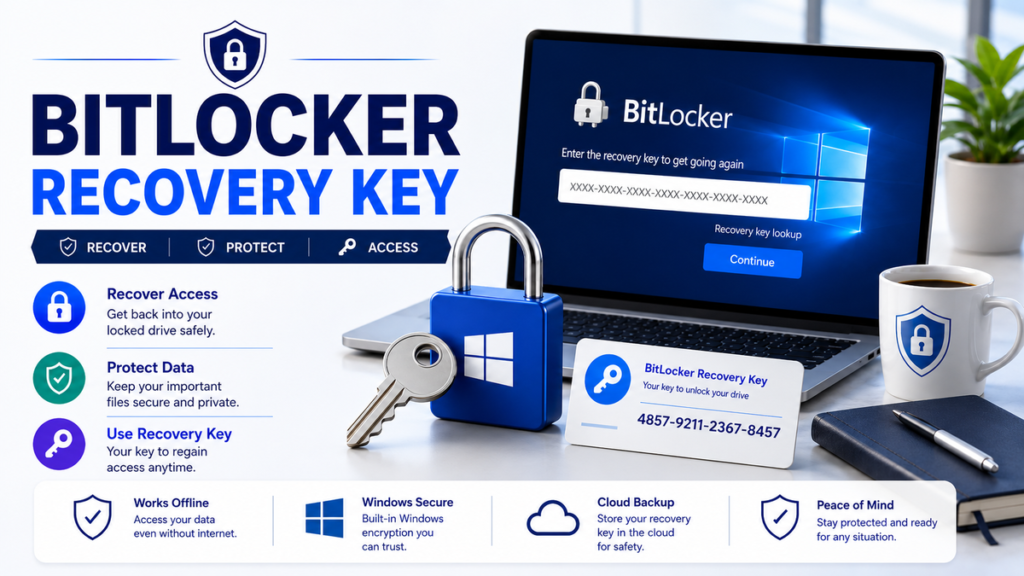
Data security has become more important than ever as cyber threats, data breaches, and device theft continue to rise. Whether you use your computer for personal files or business documents, protecting sensitive information should always be a priority. Microsoft offers one of the most effective built-in encryption tools for Windows users called BitLocker Recovery Key. This feature encrypts your hard drive, making it nearly impossible for unauthorized individuals to access your data without proper authentication.
While BitLocker provides excellent security, there are situations where Windows requires a BitLocker Recovery Key before allowing access to the encrypted drive. Many users panic when they suddenly encounter the recovery screen because they are unfamiliar with the purpose of this key or where it is stored.
Fortunately, the BitLocker Recovery Key is designed to protect your data rather than lock you out permanently. Understanding how it works, where to find it, and how to manage it can save you significant time and frustration.
What Is BitLocker Recovery Key?
A BitLocker Recovery Key is a unique 48-digit numerical password generated automatically when BitLocker Drive Encryption is enabled on a Windows device.
Its primary purpose is to unlock an encrypted drive when Windows cannot verify that the person attempting to access the computer is authorized. Think of it as an emergency backup password for your encrypted storage.
Unlike your Windows password or PIN, the recovery key is only required under special circumstances, such as hardware modifications, firmware updates, or security changes that prevent BitLocker from verifying the device’s integrity.
Why Does BitLocker Create a Recovery Key?
BitLocker is designed around strong security principles. If Windows detects something unusual during startup, it assumes there could be a security threat.
Examples include:
- Replacing the motherboard
- Updating the BIOS or UEFI firmware
- Changing TPM settings
- Moving the encrypted drive to another computer
- Repeated incorrect PIN attempts
- Secure Boot configuration changes
Instead of risking unauthorized access, BitLocker requests the recovery key before allowing access to the encrypted drive.
What Does a BitLocker Recovery Key Look Like?
A BitLocker Recovery Key consists of exactly 48 digits divided into groups for easier reading.
Example:
123456-234567-345678-456789-567890-678901-789012-890123
Each encrypted drive has its own unique recovery key.
How BitLocker Recovery Works
BitLocker uses advanced encryption technologies built directly into Windows Professional, Enterprise, and Education editions.
When encryption is enabled, Windows creates multiple layers of protection.
These include:
Trusted Platform Module (TPM)
Most modern computers contain a TPM chip.
The TPM securely stores encryption information and verifies the system before Windows starts.
If everything matches expected security conditions, Windows unlocks the drive automatically.
PIN Authentication
Some organizations require users to enter a startup PIN before Windows loads.
This adds another layer of security beyond TPM.
USB Startup Key
Certain systems require a USB flash drive containing authentication information before startup.
Without the USB key, BitLocker refuses to unlock the drive.
Recovery Mode
If any authentication method fails or Windows detects suspicious changes, BitLocker enters recovery mode.
Recovery mode asks for the 48-digit BitLocker Recovery Key.
Once entered correctly, Windows unlocks the encrypted drive and allows normal access.
Why Windows Requests a BitLocker Recovery Key
Many users are surprised when Windows suddenly asks for the recovery key despite never having seen it before.
This usually happens because BitLocker detects unexpected changes.
Hardware Changes
Replacing critical hardware can trigger recovery mode.
Examples include:
- Motherboard replacement
- TPM replacement
- Hard drive migration
- CPU upgrade
Since these changes affect system security, BitLocker requests verification.
BIOS or UEFI Updates
Updating your motherboard firmware may reset security settings.
BitLocker treats these changes as potential security risks and requests the recovery key.
TPM Reset
If the Trusted Platform Module is cleared or reset, BitLocker loses access to stored encryption information.
Recovery mode is triggered immediately.
Secure Boot Changes
Enabling or disabling Secure Boot changes the trusted startup configuration.
Windows requires recovery authentication before continuing.
Multiple Failed Login Attempts
Too many incorrect PIN or password attempts may cause BitLocker to enter recovery mode.
This helps prevent brute-force attacks.
Drive Transferred to Another Computer
BitLocker encryption is closely tied to the original hardware.
Installing an encrypted SSD into another PC usually requires the recovery key before access is granted.
Where to Find Your BitLocker Recovery Key
The good news is that Windows often saves the BitLocker Recovery Key automatically during setup.
Depending on your configuration, your key may already be stored safely.
Microsoft Account
For most home users, Windows automatically uploads the recovery key to the Microsoft account used during device setup.
After signing in to your Microsoft account, you can locate all registered recovery keys associated with your devices.
Azure Active Directory
Business devices managed by organizations often store recovery keys in Azure Active Directory.
IT administrators can retrieve these keys when employees are locked out.
Active Directory
Many enterprise environments automatically back up BitLocker Recovery Keys into on-premises Active Directory.
This allows administrators to recover encrypted drives without losing data.
USB Flash Drive
During BitLocker setup, users may choose to save the recovery key onto a USB flash drive.
Keeping this USB in a secure location provides quick access if recovery is required.
Printed Copy
Some users prefer printing the recovery key and storing it in a secure place such as a locked cabinet or home safe.
This method protects against cloud account issues and hardware failures.
Saved Text File
Windows also allows users to save the recovery key as a text file.
Never store this file on the same encrypted drive because it will be inaccessible if recovery mode is triggered. Instead, save it on another device or secure external storage.
How to Recover a Locked BitLocker Drive
Getting locked out of your BitLocker-encrypted drive can be stressful, but recovering access is usually straightforward if you have your recovery key. Microsoft designed BitLocker to prioritize data security without making recovery impossible. Follow these steps to regain access safely.
Step 1: Locate Your Recovery Key
Before attempting recovery, find your 48-digit BitLocker Recovery Key. It may be stored in your Microsoft account, printed on paper, saved as a text file, stored on a USB flash drive, or managed by your organization’s IT department.
Ensure you use the recovery key associated with the correct drive. If you have multiple encrypted devices, verify the Key ID displayed on the recovery screen matches the corresponding recovery key.
Step 2: Enter the Recovery Key
When the BitLocker recovery screen appears during startup, carefully type the 48-digit recovery key exactly as it is shown in your backup. The numbers are grouped for easier reading, but Windows accepts them as a continuous sequence.
After entering the correct key, press Enter. Windows will decrypt the necessary startup information and continue booting normally.
Step 3: Sign In to Windows
Once Windows starts, log in using your normal account credentials. If BitLocker entered recovery mode because of a temporary hardware or firmware change, the system may function normally after successful authentication.
Step 4: Investigate the Cause
Determine why BitLocker requested the recovery key. Recent BIOS updates, TPM resets, hardware upgrades, or Secure Boot changes are common triggers. Identifying the cause helps prevent repeated recovery prompts.
Step 5: Suspend and Resume BitLocker
If you plan to perform additional hardware upgrades or firmware updates, temporarily suspend BitLocker before making changes. Once maintenance is complete, resume protection to restore full encryption security.
How to Back Up Your Recovery Key
Backing up your BitLocker Recovery Key is one of the most important steps in protecting encrypted data. Without it, recovering your files after certain hardware or security changes may become impossible.
Save to Your Microsoft Account
For most personal computers, saving the recovery key to your Microsoft account is the easiest option. This provides secure cloud storage and allows you to retrieve the key from another device whenever needed.
Save to a USB Drive
A USB flash drive provides convenient offline storage for the recovery key. Store the USB in a safe location separate from your computer to reduce the risk of losing both simultaneously.
Save as a Text File
BitLocker allows you to save the recovery key as a text document. Store this file on an external drive or another secure device rather than the encrypted drive itself.
Print the Recovery Key
Many security professionals recommend printing the recovery key and keeping it in a locked safe, filing cabinet, or other secure physical location. A printed copy remains accessible even if your online accounts become unavailable.
Maintain Multiple Backups
Following the 3-2-1 backup strategy is a smart approach. Keep multiple copies of your recovery key in different secure locations, combining both digital and physical storage methods for maximum protection.
How to Enable and Disable BitLocker
BitLocker is available on Windows Professional, Enterprise, and Education editions. Enabling encryption only takes a few minutes.
How to Enable BitLocker
Open the Control Panel and navigate to System and Security followed by BitLocker Drive Encryption.
Select the drive you want to encrypt and click Turn On BitLocker.
Choose your preferred authentication method, such as TPM, a PIN, or a password.
Next, save your recovery key using one or more backup options.
Select whether to encrypt only the used disk space or the entire drive. Encrypting the entire drive provides greater security, especially for older computers.
Choose the encryption mode that best fits your needs. Newer Windows versions use XTS-AES encryption for improved security.
Finally, begin the encryption process. Depending on your drive size, encryption may take several minutes or several hours.
How to Disable BitLocker
If you no longer need encryption, open BitLocker Drive Encryption from the Control Panel.
Locate the encrypted drive and select Turn Off BitLocker.
Windows will begin decrypting the drive. During this process, avoid shutting down your computer or disconnecting power, as interruption may delay completion.
Once decryption finishes, your drive will no longer require BitLocker authentication.
Common BitLocker Errors and Solutions
Although BitLocker is highly reliable, users occasionally encounter issues. Understanding common problems can help you resolve them quickly.
Recovery Key Not Accepted
If Windows rejects your recovery key, double-check every digit carefully. Even a single incorrect number will prevent access.
Also, verify that the recovery key matches the Key ID displayed on the recovery screen.
Endless Recovery Loop
Repeated recovery prompts often indicate BIOS changes, TPM issues, or Secure Boot configuration problems.
Update firmware carefully, restore original BIOS settings if necessary, and suspend BitLocker before making future hardware changes.
Missing Recovery Key
If you cannot locate your recovery key, check every backup location you may have used during BitLocker setup.
For company-owned devices, contact your IT administrator. Business organizations often store recovery keys in Active Directory or Microsoft Entra ID.
If the recovery key cannot be found anywhere, the encrypted data cannot be recovered due to the strength of BitLocker’s encryption.
TPM Errors
A malfunctioning or disabled TPM can prevent automatic unlocking.
Check BIOS or UEFI settings to ensure TPM is enabled and functioning correctly. Updating chipset drivers and firmware may also resolve TPM-related issues.
BitLocker Won’t Turn On
If BitLocker refuses to enable, verify that your Windows edition supports BitLocker and that your drive uses a compatible partition format.
Also, ensure the TPM is enabled or configure BitLocker to operate without TPM if appropriate for your environment.
BitLocker Best Practices
Using BitLocker effectively requires more than simply enabling encryption. Following these best practices helps maximize both security and convenience.
Back Up Your Recovery Key Immediately
Never postpone saving your recovery key. Store multiple copies using different backup methods to avoid permanent data loss.
Keep Windows Updated
Install Windows security updates regularly. Microsoft continuously improves BitLocker compatibility, security, and reliability through system updates.
Suspend BitLocker Before Hardware Changes
Before updating BIOS, replacing hardware components, or modifying Secure Boot settings, suspend BitLocker to reduce the likelihood of triggering recovery mode.
Use Strong Authentication
Whenever possible, combine TPM protection with a startup PIN or password. Multi-factor authentication significantly increases security.
Protect Your Microsoft Account
If your recovery key is stored online, secure your Microsoft account with a strong password and multi-factor authentication to prevent unauthorized access.
Test Your Recovery Process
Periodically verify that you know where your recovery key is stored. Confirming access before an emergency saves valuable time if recovery is ever required.
Encrypt External Drives
BitLocker To Go allows you to encrypt USB drives and external storage devices. This helps protect sensitive information even when portable devices are lost or stolen.
BitLocker vs Device Encryption
Many Windows users confuse BitLocker with Device Encryption. Although both protect your data through encryption, they differ in functionality and target audiences.
BitLocker
BitLocker provides advanced encryption features designed for professional users and organizations. It offers extensive configuration options, including TPM integration, startup PINs, recovery management, and encryption policies.
BitLocker is available in Windows Pro, Enterprise, and Education editions.
Device Encryption
Device Encryption is a simplified version available on many Windows Home devices that meet Microsoft’s hardware requirements.
It automatically encrypts the system drive with minimal user configuration, making it suitable for everyday consumers.
Which Option Is Better?
For businesses, IT professionals, and users requiring advanced security controls, BitLocker remains the superior choice.
For casual users who simply want basic protection without advanced configuration, Device Encryption provides an excellent balance of convenience and security.
Frequently Asked Questions
What is a BitLocker Recovery Key?
A BitLocker Recovery Key is a unique 48-digit code used to unlock an encrypted drive when normal authentication methods cannot verify your identity.
Why is Windows asking for my BitLocker Recovery Key?
Windows requests the recovery key after detecting significant hardware changes, firmware updates, TPM modifications, Secure Boot changes, or other events that affect system integrity.
Can I recover my files without the recovery key?
In most situations, no. BitLocker’s encryption is intentionally designed to prevent unauthorized access. Without the correct recovery key or valid authentication method, encrypted data cannot typically be recovered.
Does every BitLocker-encrypted drive have a unique recovery key?
Yes. Every encrypted drive generates its own unique recovery key during the BitLocker setup process.
Can I change my BitLocker Recovery Key?
Yes. You can regenerate recovery information by deleting existing protectors and creating new ones through BitLocker management tools or Windows PowerShell.
Is BitLocker available on Windows Home?
Standard BitLocker is not included with Windows Home. However, many compatible Windows Home devices support Device Encryption, which offers simplified drive encryption.
Is BitLocker secure?
Yes. BitLocker uses strong AES encryption and integrates with TPM hardware to provide enterprise-grade protection against unauthorized access.
Conclusion
BitLocker Recovery Key plays a critical role in Microsoft’s drive encryption system, ensuring that only authorized users can access protected data. Although seeing the recovery screen can be alarming, understanding why it appears and knowing where your recovery key is stored can make the recovery process quick and stress-free.
Whether you use your computer for personal files, professional projects, or sensitive business information, maintaining secure backups of your BitLocker Recovery Key is essential. Saving multiple copies in trusted locations, protecting your Microsoft account, and following BitLocker best practices significantly reduce the risk of permanent data loss.